
Setting up an organization page on EventPin allows you to manage events, build a community, and represent your brand. There are many advantages to creating and utilizing an organization profile:
- Dedicated organization page where users can see all upcoming events from your organization
- Users can follow your organization and get notifications of new events
- Hosted by call-out on event pages
- Several users managing events
- Organization specific premium features (vendors and venues)
Follow these simple steps to get started:
Step 1: Log In to Your Account
- Make sure you are logged into your personal EventPin account. If you are logged out, sign in first.
Step 2: Navigate to the Organization Creation Menu
Depending on the device you are using, follow the instructions below:
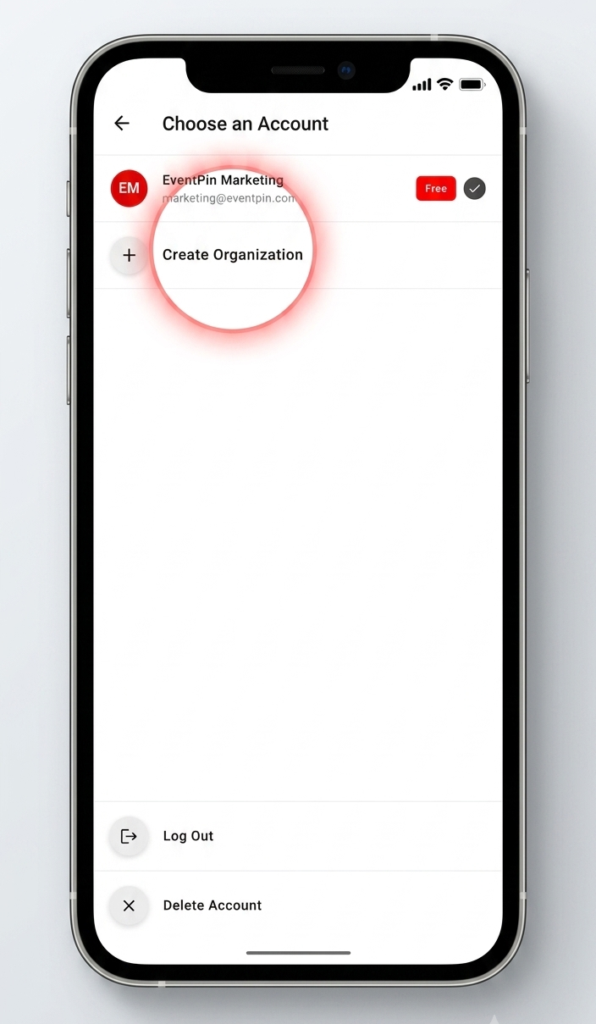
- On Mobile App / Mobile Web:
- Tap the Profile Switcher icon in the top right-hand corner.
- Tap the + icon to start creating an organization.
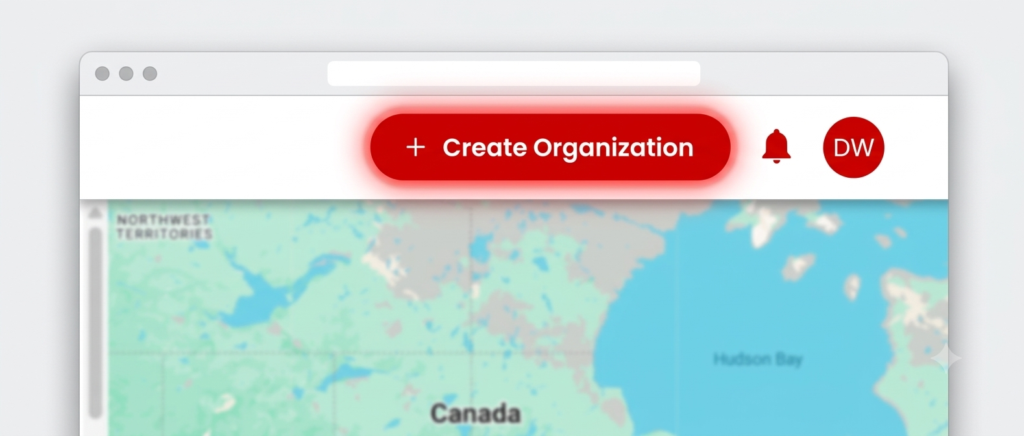
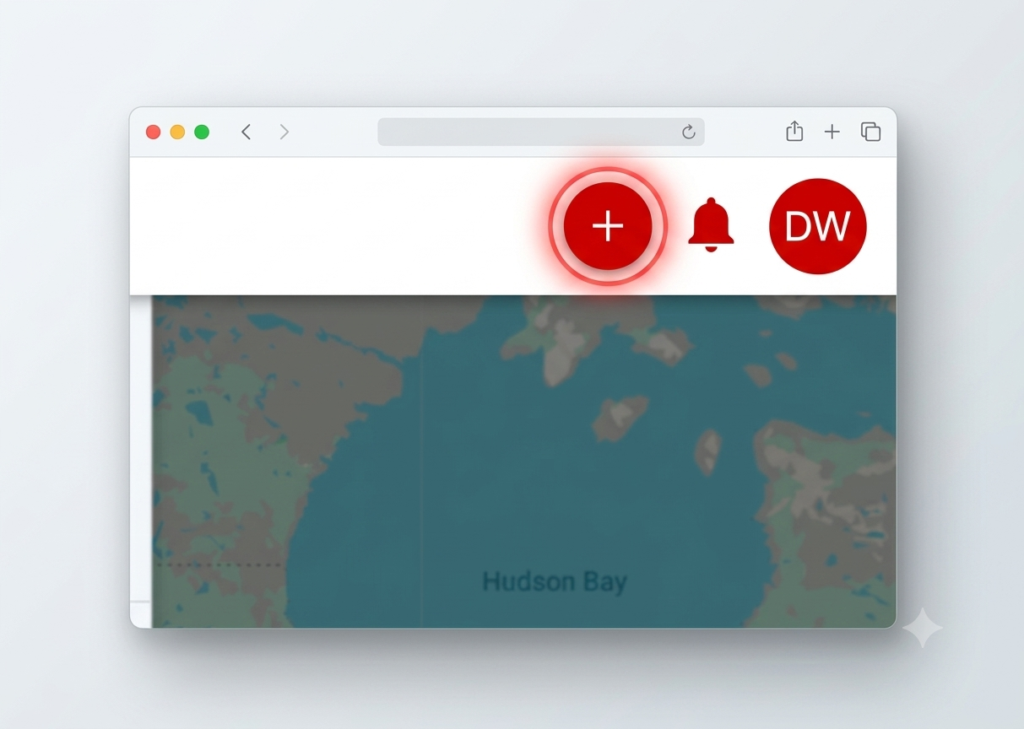
- On Desktop Web Browser:
- Look at the main menu bar and click + Create Organization.
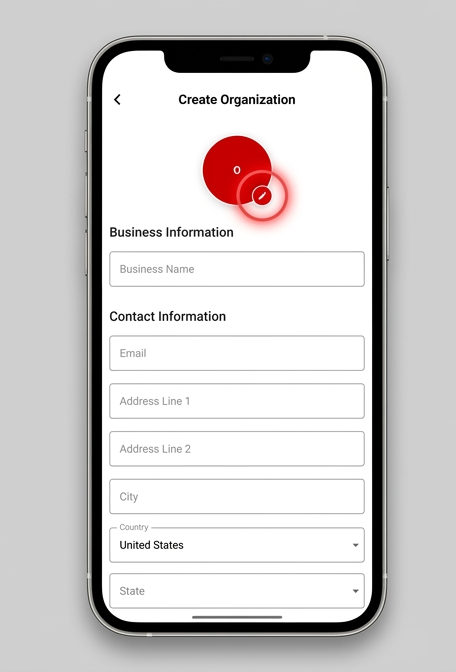
Step 3: Set Up Your Organization Profile
Once you click Create Organization, you will be prompted to fill in your organization’s details. Be sure to provide:
- Profile Picture / Logo: Upload a high-quality image that clearly represents your organization.
- Organization Name: Enter the official name of your organization or brand.
- Address: Provide your organization’s physical address or primary location.
- Website: Add your official web URL.
- Socials: Link your social media profiles (e.g., Instagram, Facebook, X).
Step : Click Create
Once you click the create button, your organization is saved. You can begin using your organization profile right away by adding events and inviting other organization members to help manage it.
Tip: Double-check your contact details and address formatting before saving to ensure attendees can easily find your events!