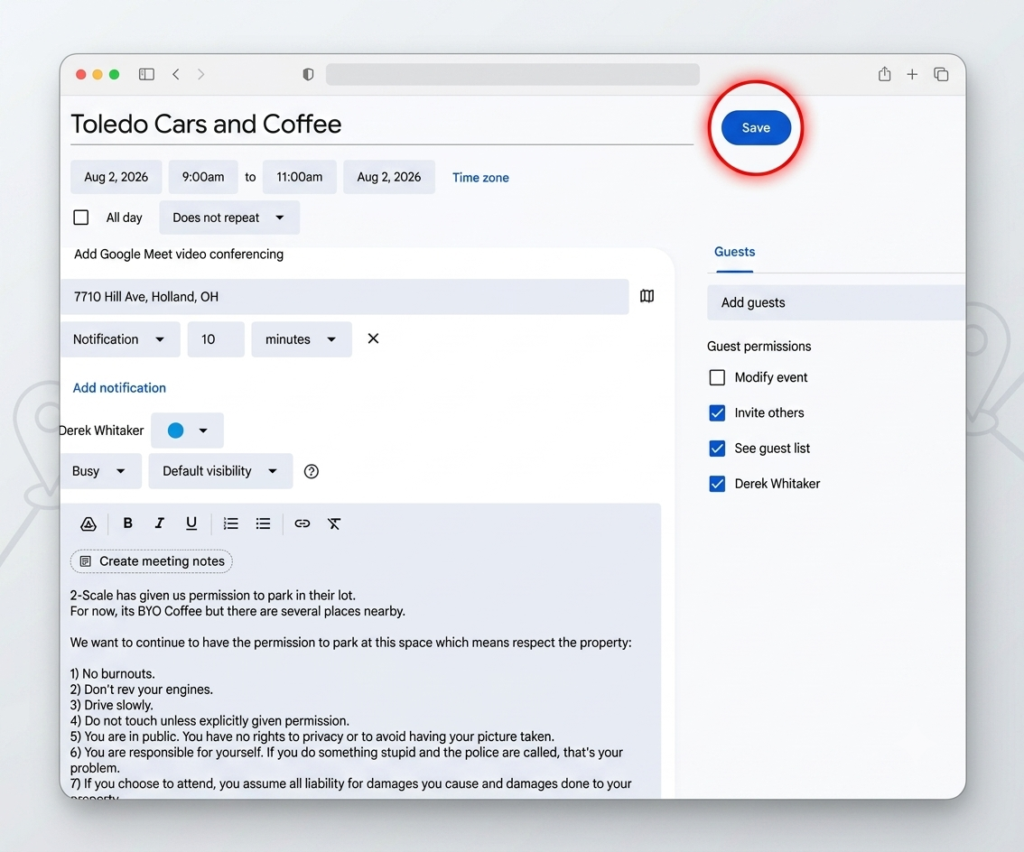
Keep track of all your upcoming plans in one place! Whether you use Apple Calendar, Google Calendar, or Outlook, EventPin allows you to sync event details seamlessly with your daily schedule across iOS, Android, and web browsers.
Syncing Details Automatically
When you add an event to your calendar, EventPin automatically populates all key details for you, including:
- Event Title
- Start & End Date / Time
- Location & Address
- Event Description
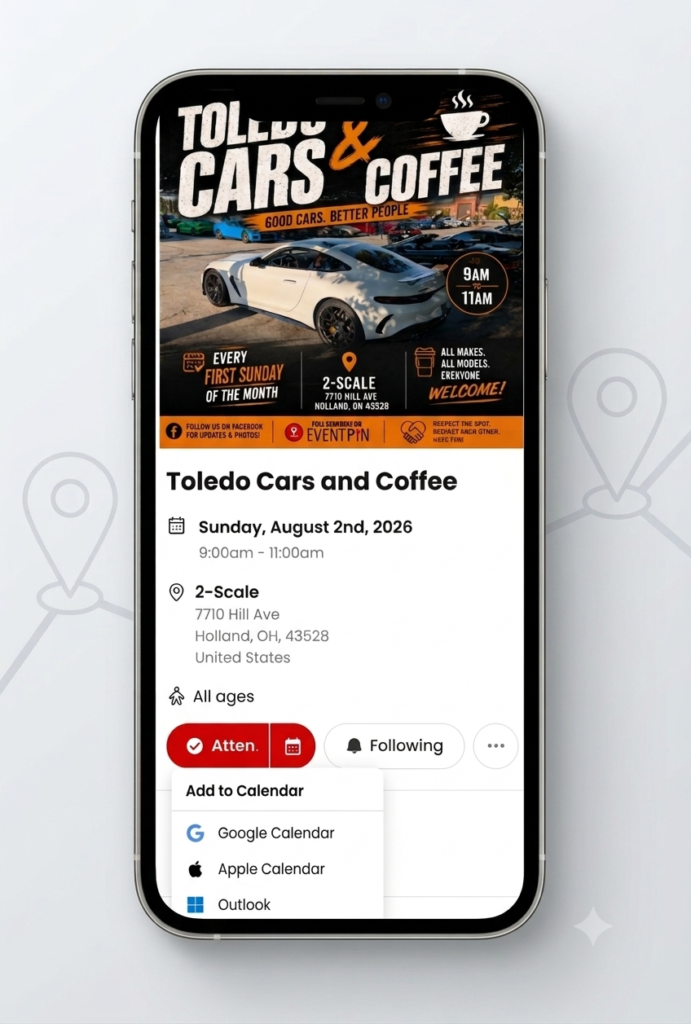
Step 1: Add to Calendar When Marking “Attend”
The easiest way to sync an event is right when you sign up:
- Open the event details card on EventPin.
- Click or tap the Attend button.
- A prompt will immediately appear asking if you would like to add the event to your calendar.
- Select your preferred provider:
- Google Calendar (Default for most Android users)
- Apple Calendar (Default for iOS users)
- Outlook Calendar
- (Optional) If you don’t want to sync it right away, simply select Skip.
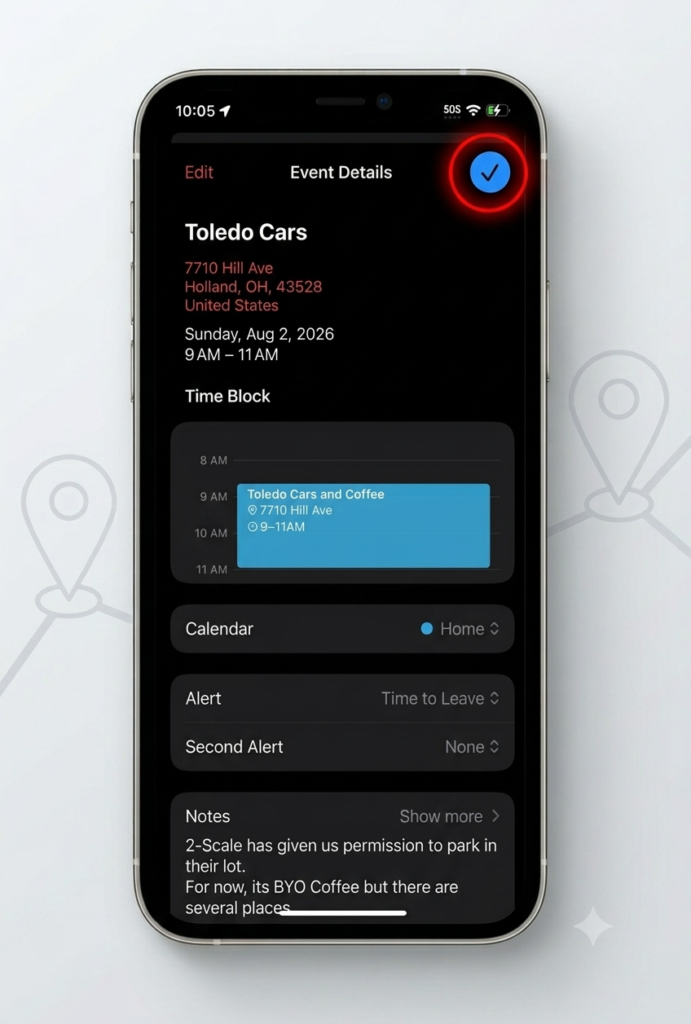
Step 2: Add to Calendar Later (Or Sync Additional Calendars)
If you previously skipped the calendar prompt or need to export the event again later:
- Open the event card you are currently attending.
- Look at the Attending status button.
- Tap or click the Calendar Icon on the right side of the button.
- Choose your preferred calendar from the list to export the details.